
If you want to use excel for large sheets with huge amounts of calculations, your computer setup really matters. You’ll want to make sure you optimize for RAM, CPU, and number of CPU cores. If you don’t, your large worksheets could take hours to run. This can be especially important if you need your excel to be responsive- such as sending you notifications when important changes happen to your sheets.
Some time ago, went on a mission to find the best computer for excel. So, I ran a bunch of tests on what matters most with monster work sheets- and detailed that in a reddit post I made here. There’s a ton of information in that post (which I’ve included below)- but what it boils down to is that you want to have a moderate amount of RAM but a lot of CPU cores. In general, the type of CPU you have doesn’t matter too much.
Bang for your buck, I really like the Ryzen CPUs. For example, this one has 16 cores- which will make large spreadsheet calculations run fast. On top of that, I’d try to get at least 8 GB of RAM. So, if you are looking for a laptop that will be incredible with excel, I’d recommend something like this rather than something with an I9 processor. Remember, number of cores matters a lot more than the type of processor, and that laptop has 16 while most laptops only have 4.
If you would like a desktop, I’d recommend something like this on the cheaper end- but if you want an absolute beast of an excel computer then you’ll want something like this with 64 cores and a wild price tag.
Below, I have my analysis of the best computer for Excel speed- so you can understand why I recommend the high core count in the above models. For these tests, I used a monster sheet filled with expensive calculations like sumifs and countifs.
Some of these spreadsheet tests took so long that we used the Spreadsheet Text Alerts add in to text us once they were complete. That way, we didn’t have to sit there and watch the computer crunch away… and instead could get a coffee.
RAM Size (GB)
For years, I kept hearing the same advice: “If Excel is slow, you need more RAM.” That’s sometimes true—but only when you’re actually running out of memory.
Think of RAM as Excel’s short-term workspace. If your workbook is so large (or you have enough other apps open) that Windows starts squeezing memory, performance can drop quickly. In that case, moving up from 4GB or 8GB can make Excel feel dramatically better.
But once you have enough RAM to comfortably hold what Excel needs, adding more memory doesn’t keep giving you the same returns. Past a certain point, it’s less “night and day” and more “nice, but not life-changing.”
Here’s what we measured using a very large, calculation-heavy workbook:
| RAM (GB) | Minutes to process “monster” workbook |
|---|---|
| 8 | 17 |
| 16 | 9 |
| 28 | 8 |
| 32 | 7.5 |
| 56 | 6 |
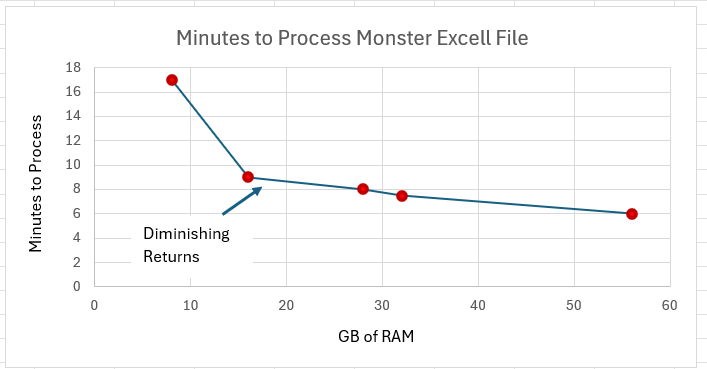
The takeaway: below ~16GB can definitely be a bottleneck, but after that, improvements tend to shrink. In our run, going from 8GB → 16GB gave the biggest jump, and the overall best-case improvement from “low RAM” to “plenty of RAM” was roughly 3× faster on this file.
CPU Speed
The other common belief is that CPU clock speed is the real secret sauce—like upgrading from an i3 to an i7 and watching everything fly.
We tested CPU speed too, and yes: faster clocks helped. But the improvement wasn’t as dramatic as the internet makes it sound.
| CPU speed (GHz) | Minutes to process “monster” workbook |
|---|---|
| 2.3 | 16 |
| 3.4 | 8.5 |
| 3.5 | 7.9 |
| 3.7 | 7.35 |
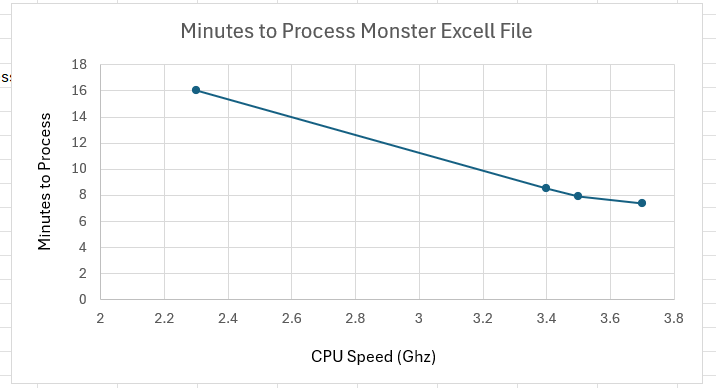
So clock speed matters, but there are limits—especially because, at the time we ran this, it wasn’t easy to find CPUs that differed massively in GHz. Today you’ll see chips advertising boost clocks around the 5–6GHz range, so in theory pushing clock speed to the max could yield a bigger improvement… but you’ll still hit diminishing returns compared to another factor that mattered way more.
CPU Cores
This was the part that surprised us.
Almost nobody talks about core count when they talk about Excel performance, but in our testing it wasn’t a small improvement—it was the entire game.
| CPU cores | Minutes to process “monster” workbook |
|---|---|
| 8 | 16 |
| 16 | 4 |
| 20 | 3 |
| 64 | 1.3 |
| 72 | 1 |
| 96 | 0.6 |
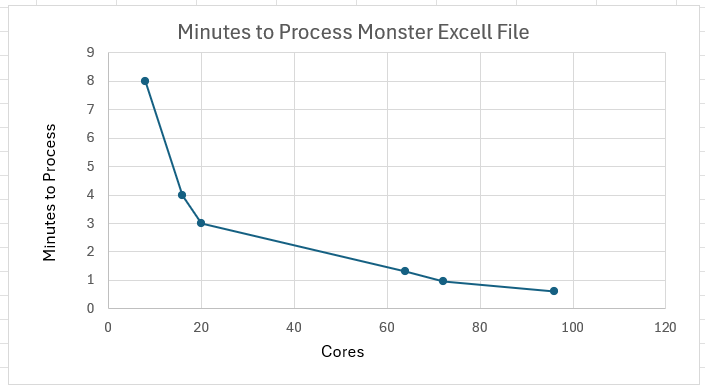
Core count absolutely crushed the other upgrades. From 8 cores to the highest core counts we tested, we saw a speedup on the order of ~30× faster.
If you do a lot of heavy calculation work in Excel, this is the single most important hardware spec to pay attention to.
Why cores win (our simple explanation)
Excel can split a lot of calculation work across multiple threads—meaning it can run pieces of the job in parallel.
- More RAM helps only if memory is limiting. If Excel already has enough workspace, extra RAM sits unused.
- More clock speed is like getting a faster delivery truck. Each trip is quicker, but you’re still doing roughly the same number of trips.
- More cores is like getting a whole fleet of trucks. Even if each one isn’t dramatically faster, you can move far more at the same time.
That’s why cores showed huge gains while RAM and GHz tapered off.
We did this testing on Azure virtual machines, using an intentionally massive workbook packed with formulas (SUMIF, COUNTIF, and lots of other calculation-heavy patterns). The VMs ranged from roughly a few hundred dollars to a few thousand dollars per month, depending on the configuration.
One big warning: some Excel features can bottleneck everything
Even with great hardware, certain formulas and design choices can kneecap performance.
A classic example is INDIRECT. It can force Excel into more constrained calculation behavior, which can reduce how well Excel benefits from multiple threads. In other words: it can turn your expensive, many-core machine into something that performs like a much smaller CPU.
There are other functions and workbook patterns that behave similarly, so if you care about speed, it’s worth learning which formulas are “volatile” or thread-unfriendly and avoiding them when possible.
Even a beast machine can’t fully save a workbook design that forces Excel to calculate the slow way.
So, what’s the best computer for Excel?
If you would like a desktop, I’d recommend something like this on the cheaper end- but if you want an absolute beast of an excel computer then you’ll want something like this with 64 cores and a wild price tag.
Disclosure: This article contains Amazon affiliate links. If you purchase through these links, I may earn a commission at no extra cost to you.
Leave a Reply