
There are lots of reasons you might want Excel to play a sound automatically. You might be:
- Monitoring stock prices and want a sound when a stock falls below or rises above a certain level
- Keeping track of inventory and need a warning when quantity gets too low
- Reminding your kids to complete chores if they aren’t done by a certain time
- Watching project deadlines, budgets, or KPIs and want an audible alert when they cross a threshold
Whatever your reason, you can set up Excel sound alerts in just a few minutes with the free features of the Excel Text Alerts add-in. You don’t need to write VBA or install any extra scripts.
Below is a simple step-by-step guide.
Step 1: Install the Spreadsheet Text Alerts add-in
First, install the Spreadsheet Text Alerts add-in.
- The add-in is free if you only want sound notifications. Download it here.
- If you later want to send text messages or email alerts from Excel, you can upgrade for $9.99/month.
Once it’s installed, open Excel and make sure the Spreadsheet Text Alerts button appears in your Excel toolbar (ribbon).

Step 2: Create a sound alert rule
Next, you’ll set up a rule that tells Excel when to play a sound.
- Click the Manage Alerts in the Spreadsheet Text Alerts button in the toolbar.
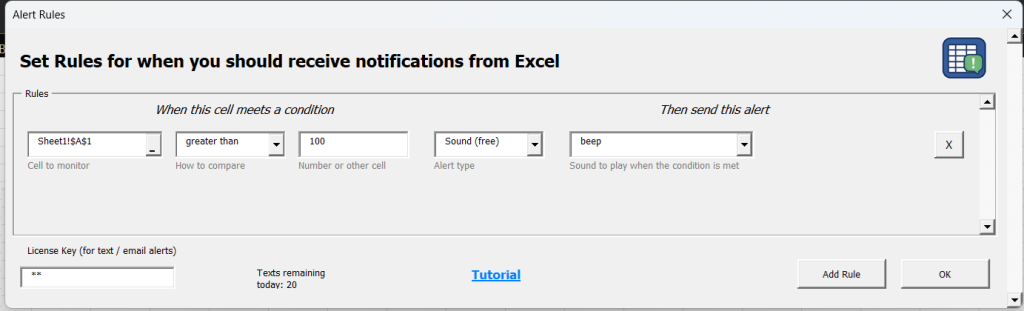
- Choose the cell you want to monitor (for example, the cell where your stock price or inventory level is shown).
- Choose the condition you care about (greater than, less than, equal to, etc.).
- Enter the trigger value.
- Choose the sound you want to play when the condition is met.
Example:
If you want Excel to beep every time AAPL stock is above 100:
- Select the cell that contains your Apple stock price (A1 in the below example)
- Set the condition to “greater than”
- Enter 100 as the value
- Select the “Beep” sound
Click OK to finish.
Step 3: Let Excel run and wait for your alert
Now just let your spreadsheet update as normal. When your condition becomes true, Excel will automatically play the sound you selected.
A couple of important notes:
- The sound only plays when the condition becomes true, not just because it’s already true.
- For example, if your rule says “play a sound when AAPL is greater than or equal to 100,” but the price is already $200 when you create the rule, you won’t hear an alert right away.
- You’ll hear the sound the next time the value crosses the threshold (for example, if it drops below 100 and then rises back up past 100 again)
Leave a Reply