
Excel is great at tracking numbers—but it’s terrible at one thing: getting your attention at the exact moment something changes. If you’ve ever stared at a spreadsheet thinking “I really can’t afford to miss this,” you’re in the right place.
This page is the main hub for setting up sound, email, and text (SMS) alerts in Excel using Spreadsheet Text Alerts. The goal is simple: you define a rule (like “inventory below 10” or “complaints above 50”), and Excel notifies you automatically—so you’re reacting to problems in minutes instead of discovering them hours later.
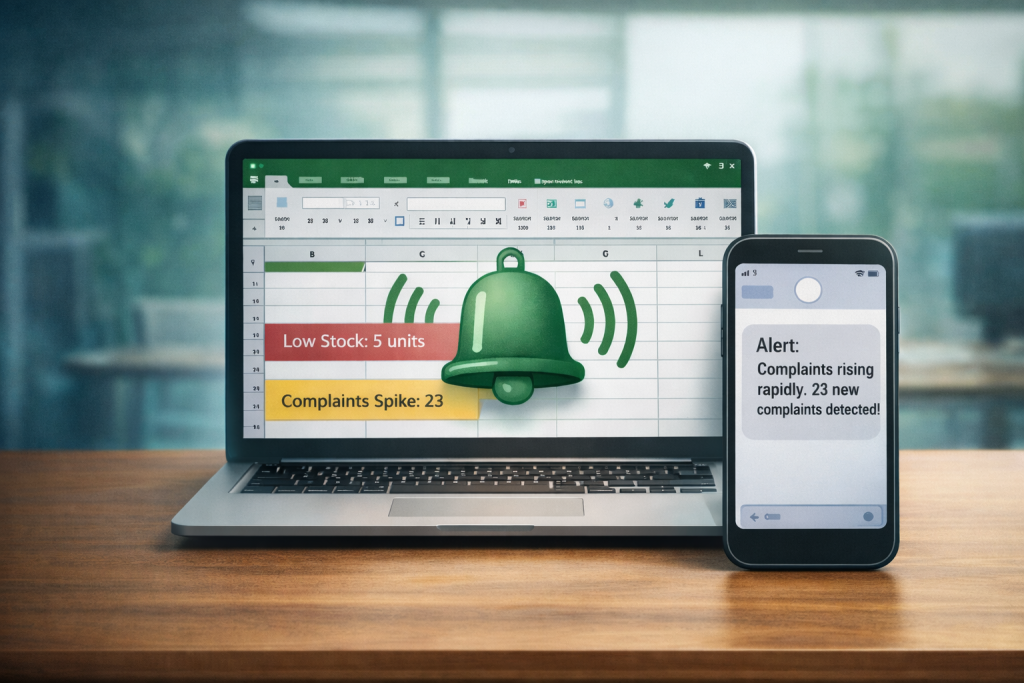
I learned how valuable this can be back when I managed inventory at an SP500 company. We tracked everything in Excel, and the biggest failures weren’t because we didn’t have data—they happened because we didn’t see the data in time. When stock levels dipped too low, the chain reaction was always the same: rush orders, disappointed customers, and a lot of scrambling. All of this could have been prevented.
So we set up an alert system tied to our inventory sheet. The moment an item dropped below a threshold, I’d get notified immediately and could reorder or shift stock before it turned into a real problem. That one change cut our response time dramatically—no more “I’ll check that later,” no more surprises.
Later, I used the same idea for something totally different at another company: our customer complaint system. Complaints were logged and summarized into a spreadsheet, and we built a rule that would text me when complaints suddenly spiked. What we found was eye-opening—those spikes were often the earliest sign of an outage or service issue, sometimes before internal dashboards made it obvious. Getting a text at the right moment meant we could jump on incidents faster and reduce the blast radius.
That’s the big takeaway: Excel can be more than a report. It can be an early-warning system.
Here’s how everything works at a high level. You choose what you want to watch (a value, a range, a formula result, a status cell), you set the trigger condition (above/below, equal to, contains text, date-based, etc.), and you pick how you want to be notified. From there, Excel keeps watch and only taps you on the shoulder when the rule is met.
Which alert type you choose depends on how urgent the situation is:
- Sound alerts are perfect when you’re already at your desk and just need an instant “hey—look at this” cue while you work.
- Email alerts are great when you want a record, want to notify a team, or the alert is helpful but not time-critical.
- Text (SMS) alerts are for when timing matters most—when you want to know immediately, even if you’re away from your computer.
When you’re ready, download the add in then jump to the tutorial you want:
If you’re not sure where to start, a good workflow is: start with sound alerts to validate your rule, then switch to email or SMS once you trust it. Plus, it’s free to get started with sounds.
Or, if you’re not very comfortable with spreadsheets, check out our list of free Excel templates that pair with the add in. These are prebuilt and ready to go for your needs.
One last practical note: alerts are only as reliable as the machine running Excel. If your workbook is heavy, you run lots of formulas, or you want faster responsiveness, the right hardware helps a lot. I wrote a guide here: What kind of PC should you buy for Excel? If you don’t already have a “firepower” setup, I’d recommend choosing one of the PCs from that article so your alerts stay snappy and dependable.
Watch, Read, Listen
Join 900+ subscribers
Stay in the loop with everything you need to know.