Sometimes you don’t need another app or complicated automation—you just need Excel to count down to a moment and make noise when it hits zero.
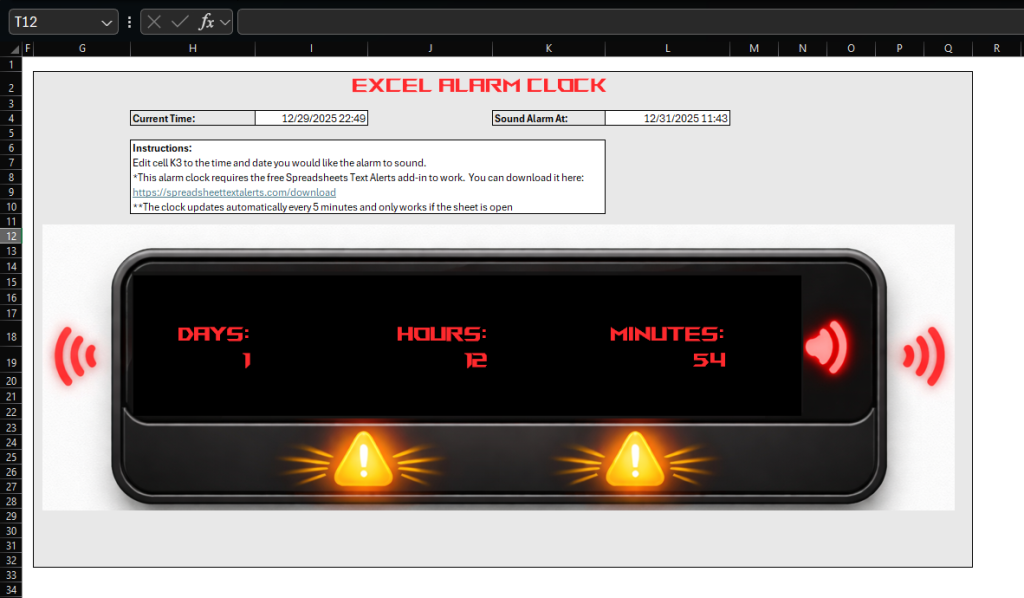
That’s exactly what this Excel Countdown Timer Template does. You enter the date/time you want the timer to end, and the sheet shows a large digital-style countdown (days, hours, minutes). It updates automatically every 5 minutes, and when the countdown expires it plays a sound so you don’t miss it.
Why use a countdown timer inside Excel?
If you live in spreadsheets, it’s surprisingly useful to keep your timer where you’re already working. This template is great for:
- Deadlines and cutoffs (submit by 3:00 PM, market close, payroll, invoicing windows)
- Timeboxing work (deep work blocks, writing sprints, “stop after 45 minutes”)
- Break reminders (stand up, stretch, hydrate, eye breaks)
- Monitoring tasks while multitasking (let Excel notify you when it’s time)
- Tracking long countdowns (days until an event, launch, meeting, travel, etc.)
It’s also handy when you’re sharing a workbook with a team—everyone sees the same countdown right in the file.
How the template works
The template has two key time fields:
- Current Time (displayed on the sheet)
- Timer Ends At (the date/time you want the countdown to reach)
From there, the sheet calculates the difference and displays it as a big countdown (like the one shown in the screenshot). The countdown refreshes automatically every 5 minutes to keep it lightweight and reliable, so keep in mind this timer is not exact.
When the target time is reached (or passed), the template triggers an alarm sound notification, just like an alarm clock.
What you need
This template relies on the free Spreadsheet Text Alerts add-in to play the sound so no VBA coding is required. You can download that here for free.
Quick start
- Download the Free Excel Countdown Timer Template
- Install the Spreadsheet Text Alerts add-in. Since you are only using sound notifications, and not text alerts, this add in is free. To add text alert notifications as well it’s only $9.99 a month.
- Open the template in Excel
- In the “Timer Ends At” cell, enter your end time (date + time). Make sure that your format is something Excel understands, so to be safe use the same format as the date in cell I4.
- Leave the workbook open while you work
- When the countdown reaches zero, the sound plays
Tip: Set a timer a few minutes ahead the first time so you can confirm everything’s working. Remember, you have to wait 5 minutes at minimum for it to go off.
Important notes (so it behaves the way you expect)
- The countdown updates every 5 minutes, not every second. (This is intentional—Excel can get sluggish if you try to run constant timers.)
- The workbook must be open for the sound notification to trigger.
- If your PC goes to sleep, Excel is paused—so the timer won’t complete until the computer wakes.
- Some systems may reduce activity when Excel is minimized or inactive; if you notice missed triggers, keep Excel open/visible during critical countdowns.
Who this is perfect for
- Analysts watching time-sensitive reports
- Anyone running a checklist or process inside Excel
- Writers, students, and creators doing focus sessions
- People who want a “desktop timer” without extra apps
- Teams using a shared workbook as a lightweight operations hub
Leave a Reply